Give us a chance to convince you
Seems like we didn't hit it at the right note. The permission screen could seem a bit intimidating, and that's quite obvious. So we prepared a note to give you some explanations.
We care for your privacy
We only store the data that is absolutely needed for the functioning of the app. We don't sell or share your data with a third party. Having said that, we also want to give you explanations of all the permissions that are asked at time of our app's installation.


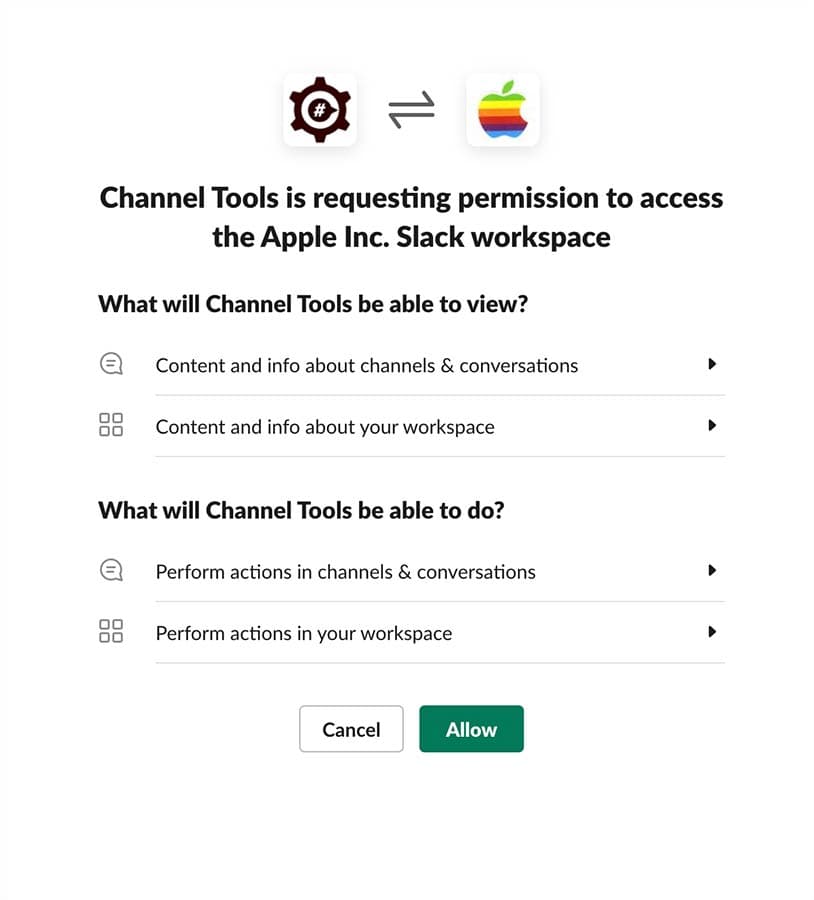
Slack's permission modal for Channel Tools app
Content and info about channels and conversations
View basic information about private channels in a workspace that Channel Tools has been added to
When using the app in a private channel, this scope helps retrieve count of the users in a channel. This information is then shown to the user to inform her about the process. Also to know whether the channel is shared with another workspace or not. Whether the channel is a group or a private channel etc.
View basic information about public channels in a workspace
When using the app in a public channel, this scope helps retrieve count of the users in a channel. This information is then shown to the user to inform her about the process. Also to know whether the channel is shared with another workspace or not. Whether the channel is a group or a private channel etc. This scope is similar to groups:read, but specifically for public channels.
View messages and other content in direct messages that your slack app has been added to
When you send a DM to our app, Slack send an event to the app behind the scene. This event requires this particular scope. The scope can only show message of a DM channel where the app has been explicitly added. (This means Channel Tools can't access your DMs with other members)
Content and info about your workspace
View people in your workspace
When you use /invite_all command, behind the scene our app is making use of this scope. Lets us iterate through the list of users in a team and then invite them to a channel. Magic!
View email addresses of people in your workspace
When you export a list of all users in a channel, it also contains email addresses, right? This scope enables us to make them a part of the export. We also store your mail in our DB when you signup for the first time. It is to uniquely identify you, it also helps us when you use the feedback command, so that we can get back to you via email. We know we should ideally be replying back to your Slack itself, but that's still in works.
View the name, email domain, and icon for workspaces Channel Tools is connected to
When you install Channel Tools to your workspace, we create an account for your team. This is to uniquely identify your team and to know which teams are using our app.
Perform actions in channels and conversations
Manage public channels that your slack app has been added to and create new ones
This scope is required for inviting users to a public channel, where the app is already added. Our app doesn't create a new channel, and doesn't invite anyone without your explicit permission.
Manage private channels that your slack app has been added to and create new ones
This scope is required for inviting users to a private channel, where the app is already added. Channel Tools doesn't create a new channel, and can't view a private channel unless it has been added to it.
Send message as @channeltools
We use this scope to send a message when you invoke commands provided by the app. This gives us permission to post message only to those channels where the app has been added. (Used at the time of onboarding, and when app_home_opened event is fired)
Perform actions in your workspace
Add shortcuts and/or slash commands that people can use
If this scope wasn't there, how would you get all those magic commands - /invite_all, /invite_channel, /export_members etc.
Add steps that people can use in Workflow Builder
Channel Tools exposes /random_user through a workflow step. This means you can create automations using Channel Tools where a random user needs to be selected.
Slack Admins Swear By It
From dreaded task to daily celebration. Hear from Slack users who got their time back

Have been struggling with #Slack administration for a while; for example, inviting all members to a new channel involved some manual labor. Luckily, Channel Tools extension came to the rescue.

Came to learn about @SlackHQ Channel Tools Plugin while prepping for a demo. Was looking for quick way to "clear" the screen on a specific channel. This is what I was looking for. It even includes /clear command!

How to bulk add all members to a Slack channel? There is a better way to do it, Channel Tools!

"This is an awesome tool! I use this tool to quickly add my members to channels in an efficient way. It also helps with engagement when I run the tool in my channels.
I have 650+ people in the community so this was a no brainer when trying to getting my members into channels. Its also super fun to watch the counter as it adds members. I also recommend to another community manager and they liked it as well. Way to go! "
Stephen Vincent Casaceli II
Founder at PigeonHack
(A community for indie-makers to help with audience building, marketing, and sales)
Join 20,000+ Teams Who Love Channel Tools
Stop dreading channel management. Start celebrating how easy it can be. Give your Slack admins the gift of time.
Free to install · no credit card needed