Clear Slack Channel Screen
Create instant visual breathing space in any Slack channel without deleting messages. Perfect for demos, presentations, screenshots, and fresh starts.
Free forever · No messages deleted · Works in all channels
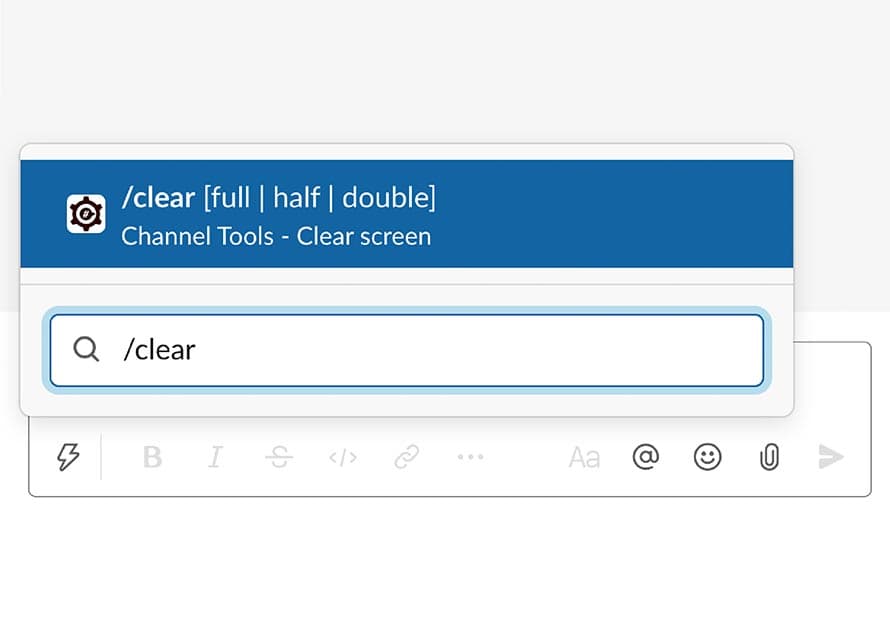
The /clear Command
The /clear command creates visual breathing space by posting a blank message that fills the entire channel view. Previous messages are pushed out of sight but remain fully accessible by scrolling - nothing is deleted.
Non-Destructive
Creates visual space without deleting any messages. History is preserved.
Perfect for Demos
Start presentations and screenshots with a clean, professional-looking channel.
Instant Results
One command creates immediate visual clarity for everyone in the channel.
When to Use /clear
Practical scenarios where clearing the channel screen adds value
Demos & Presentations
Start your screen share with a clean Slack channel, free from distracting previous conversations. Create a professional first impression.
Screenshots
Capture clean screenshots for documentation, tutorials, or marketing materials without revealing unrelated channel history.
Training Sessions
Begin training with a fresh channel view so participants focus on new content rather than scrolling through history.
Meeting Kickoffs
Start team meetings with a clean slate, signaling a fresh discussion while keeping all historical context accessible.
Context Switching
Clear visual clutter when switching topics in active channels, helping team members mentally reset for new discussions.
Video Recordings
Record clean Slack tutorials or product demos without worrying about visible message history in the background.
How /clear Works
Simple, safe, and completely reversible
Type /clear
Execute the command in any channel where you want to create visual space. Works in both public and private channels.
Spacer Message Posts
Channel Tools sends a blank message that's tall enough to fill the entire channel view, pushing previous content out of the visible area.
Clean Screen Achieved
The channel now appears clean and fresh. All previous messages remain in history and can be accessed by scrolling up - nothing is lost.
Important to Know
Messages Are Safe
/clear does NOT delete messages. It only creates visual space. All messages remain searchable and accessible by scrolling up in the channel.
Visible to All
Everyone in the channel will see the clear effect. The spacer message is visible to all members, creating a consistent clean view.
No Special Permissions
Any channel member can use /clear. Since it doesn't modify or delete content, no admin permissions are required.
History Preserved
Slack's search functionality works normally. All cleared messages can still be found via search or by scrolling through history.
/clear vs. Deleting Messages
Understand the safe, non-destructive approach
Deleting Messages
- Permanently removes content
- Can't be undone
- Loses important context
- Time-consuming for multiple messages
- May violate compliance requirements
Using /clear
- Keeps all messages safe
- Fully reversible (just scroll up)
- Preserves searchable history
- Instant with one command
- Compliance-friendly
Frequently Asked Questions
Can I delete the spacer message later?
Yes, you can delete the spacer message just like any other Slack message. It's a regular message that happens to be blank and tall.
Will /clear work on mobile?
Yes! The /clear command works on all Slack platforms - desktop, web, iOS, and Android. The visual clearing effect is consistent across devices.
How often can I use /clear?
As often as you need! There are no limits on using /clear. Use it whenever you want to create visual breathing space in a channel.
Does it affect channel search?
No, Slack's search functionality works normally. All messages remain searchable even after using /clear. The command only affects what's currently visible on screen.
Keep Your Channels Clean & Professional
Add the /clear command to your Slack workspace today
Add to SlackFree forever · Safe & non-destructive · Used by 20,000+ teams