Copy Members from One Channel to Another
Instantly add all members from any Slack channel to another channel. Perfect for merging teams, creating project groups, or reorganizing your workspace.
Free forever · No credit card required · Works with any workspace size
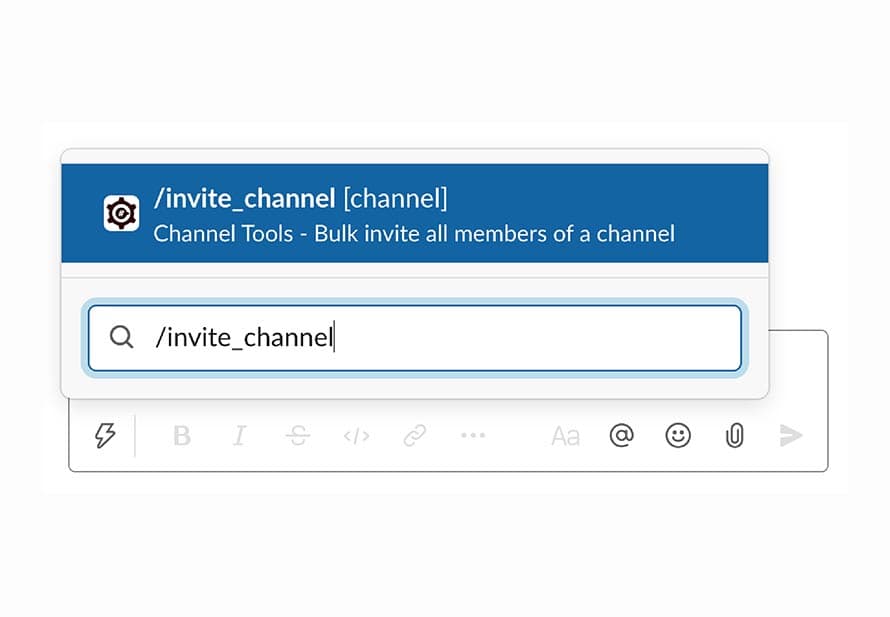
The /invite_channel Command
Channel Tools supercharges your Slack with the /invite_channel command. Select any channel as your source, and all its members will be copied to your current channel in seconds. No spreadsheets, no manual clicking, just simple automation.
Merge Channels Instantly
Consolidate teams by copying members from multiple channels into one.
Flexible Source Selection
Choose from any public or private channel you have access to.
Saves Hours of Work
What used to take hours of manual inviting now takes seconds.
When to Use /invite_channel
Real-world scenarios where copying channel members saves time and improves collaboration
Merging Teams
When two projects combine or departments merge, quickly consolidate members from old channels into a new unified channel.
Project Kick-offs
Start new projects by copying the entire team from a department channel into a dedicated project channel.
Department Restructuring
Reorganize your workspace by creating new channels and populating them with members from existing department channels.
Training & Workshops
Create training channels and populate them with members from relevant team channels for targeted learning sessions.
Announcements
Create department-specific announcement channels by copying members from existing team channels.
Cross-functional Teams
Build cross-functional project teams by combining members from different department channels into one collaboration space.
Manual vs. Channel Tools
See how much time you'll save with automated channel member management
Manual Method
- Click "Add people" button
- Search and select each user individually
- Limited to adding ~100 users at a time
- Takes hours for large channels
- Error-prone and tedious
With Channel Tools
- Type /invite_channel command
- Select source channel from dropdown
- Handles unlimited users automatically
- Completes in seconds
- 100% accurate, zero effort
Common Questions
Can I copy members from private channels?
Yes, as long as you're a member of both the source and destination channels, you can use /invite_channel with private channels.
Will members be notified when added?
Yes, members receive a standard Slack notification when they're added to a new channel, just like with manual invites. They can mute or leave the channel if desired.
What happens if someone is already in the destination channel?
Channel Tools automatically skips members who are already in the destination channel. No duplicates, no errors - just smooth operation.
How many people can I copy at once?
There's no limit! Channel Tools handles 10, 100, 1,000+ members with ease, working within Slack's API rate limits to ensure reliable delivery.
Can I combine members from multiple channels?
Absolutely! Run /invite_channel multiple times, selecting different source channels each time. This lets you create super-groups that combine members from across your workspace.
Stop Wasting Time on Manual Invites
Join thousands of Slack admins who've automated their channel management
Add to SlackFree to use · Instant setup · Trusted by 20,000+ teams